In mobile mode, you can use different ways to display the filters widget. It can be the same as on the desktop, collapse/expand functionality, or a special pop-up widget.


Turn on collapse/pop-up on the mobile
Go to the Filters → Settings → General and turn on one of the options:
- “Collapse Filters Widget on Mobile devices”
This feature adds a mobile filter button in a mobile mode that collapses/expands filters below the button on click - “Special Pop-up Filters Widget for Mobile”
This feature adds a mobile filter button in mobile mode that works like a pop-up window with filters on click - “Same as on desktop”
Do not use the “Collapse Filters Widget on Mobile devices” or “Special Pop-up Filters Widget for Mobile”
Change mobile button breakpoint
You can use the code below in the functions.php file, in order to change the breakpoint for the mobile button
add_filter( 'wpc_mobile_width', 'my_custom_wpc_mobile_width' );
function my_custom_wpc_mobile_width( $width )
{
    $width = 1920; // new desired breakpoint in px
    return $width;
}
Typical issues

The mobile button at the bottom of the page
Go to the Filters → Settings → General and turn on the “Sidebar on top” option. This is an experimental feature, and it may not work with all themes. The theme template is responsible for the sidebar position in mobile mode. You can modify your theme template to display the sidebar in the needed place.
Additionally, you can go to the Filters → Settings → Experimental and turn on the “Hide opening widget buttons” option. It will hide the mobile filter button, and you can use the shortcode [fe_open_button] to place the mobile filter button in the needed place.
The mobile button is not visible
Depending on the theme or third-party plugin, there can be CSS style conflicts, and the mobile filter button might be hidden. You can either find the styles that are causing this issue and fix them or follow the same instructions as above.
Go to the Filters → Settings → Experimental and turn on the “Hide opening widget buttons” option. It will hide the mobile filter button, and you can use the shortcode [fe_open_button] to place the mobile filter button in the needed place.

No filters only overlay in pop-up mode
If you don’t see the filters while using pop-up functionality only overlay, it is more likely that the sidebar with widgets is hidden in mobile mode. Please ensure that the sidebar is not hidden in mobile mode.
Usually, those settings can be defined in the theme settings. If you are using any page builder to create your own templates, it can also be specified in the theme builder/specific element settings.
If you do not know where those settings are, we recommend making a request to the theme/page builder support so that they can help you find them.
Also, you can go to the Filters → Settings → General and turn on the “Pop-up Filters Widget compatibility mode” option.
The mobile button is visible on all pages
Go to the Filters → Settings → Experimental and turn on the “Hide opening widget buttons” option. It will hide the mobile filter button, so you can use the shortcode [fe_open_button] to display the mobile filter button in the needed place.
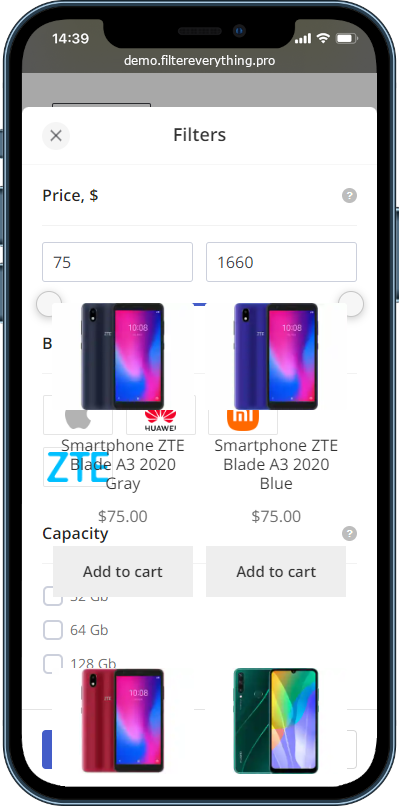
Filters appear but behind some elements on the page
In some cases, the filters are visible but do not look normal, they are behind products/posts or other elements on the page. You can go to the Filters → Settings → General and turn on the “Pop-up Filters Widget compatibility mode” option. In some cases, it can fix such compatibility issues.
If it doesn’t help, then you need to check your theme styles and fix the z-index values on your elements so they won’t go above the filter widget on mobile.